Set up GTA 6 3D audio on PS5
GTA VI supports Tempest 3D Audio on PS5. Open the console’s Settings, then Sound. Choose 3D Audio (Headphones) for a headset or 3D Audio (TV) for built-in TV speakers. The TV setup measures the room, so run it from the seat where you play.
On this page
For headphones
Connect the headphones you play with. In 3D Audio (Headphones), select Create Personalized 3D Audio Profile and follow the listening prompts. Sony also offers five presets if you want to start without building a profile. Enable 3D Audio for Headphones, then try the same scene with it on and off.
For built-in TV speakers
Sit where you usually play with the DualSense controller in hand. Under 3D Audio (TV), follow the measurement prompts. The PS5 uses the controller microphone and the TV speakers to measure the room. Once the measurement finishes, compare the stereo and 3D samples. If the result sounds wrong, check that nothing blocks the TV speakers and take the measurement again.
For a receiver or a different audio output
If the sound is coming from the wrong device, open Settings, Sound, then Audio Output and select the output device. A receiver connected through HDMI has separate configuration options. Choose AV amplifier where appropriate, then set its speaker channels and positions. Use the TV-speaker test when sound comes from the television’s speakers.
If you hear the street but miss the dialogue
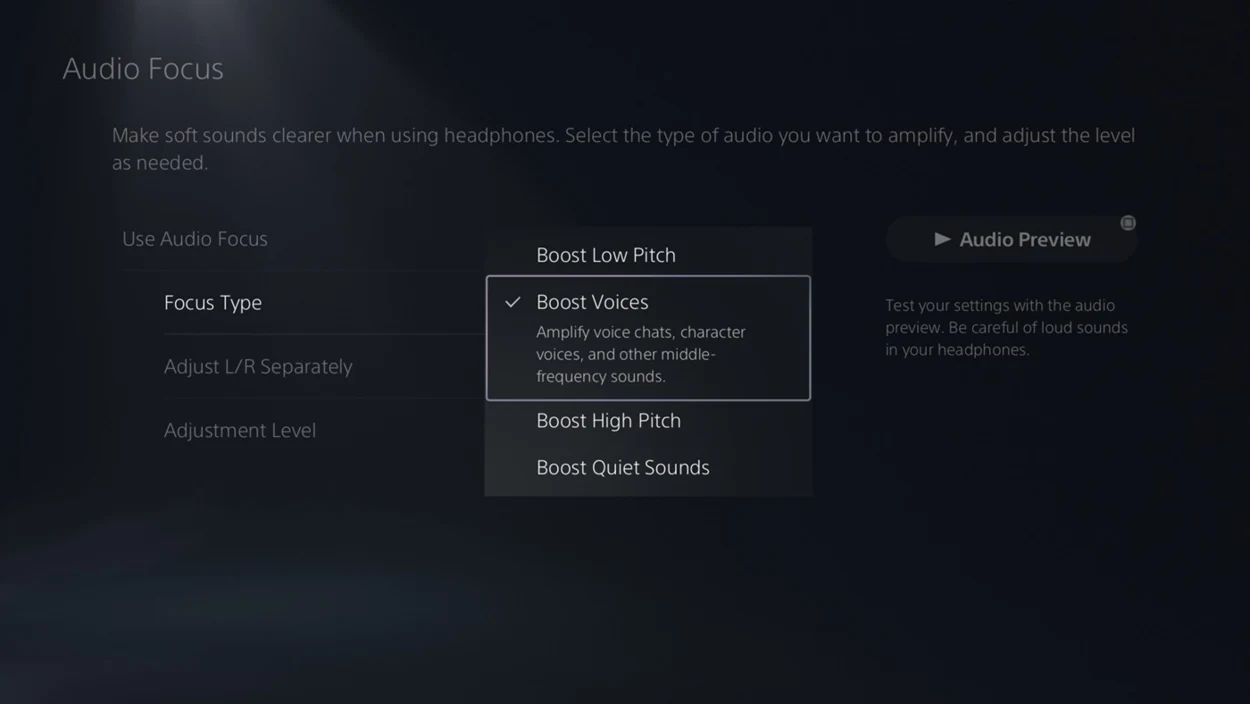
GTA VI’s in-game Audio settings include volume controls. For headphones, the PS5 also has Audio Focus under Settings, Sound, Volume. Select Boost Voices and use Audio Preview to compare the effect before going back to the game. Sony supports this feature on USB or analog headphones. HDMI speakers and soundbars use their own controls.