
Install World of Warcraft: Forever and choose your first preset
Download Battle.net for Windows or Mac, then choose World of Warcraft: Forever under Game Version. Your active WoW subscription or paid Game Time covers Forever.
Choose the game and account
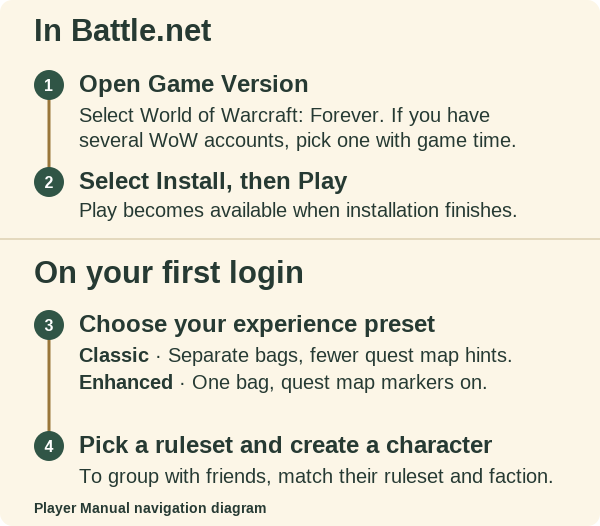
Sign in to Battle.net and open World of Warcraft in the desktop app. Above the Install or Play button, open Game Version and choose World of Warcraft: Forever. If you see several WoW accounts, choose the one with active game time.
New to Blizzard games? Create a Battle.net account and verify your email, then use those details in the desktop app. If you already pay for WoW, use the login that holds your subscription.
If Battle.net offers to sell you game time you already own, open Games & Subscriptions. Under World of Warcraft, match the account name and region showing active time to the account selector in the desktop app. A single login can have several WoW licenses. If the payment landed on the wrong one, contact Blizzard with the affected account names before making another payment.
Launch the edition you selected
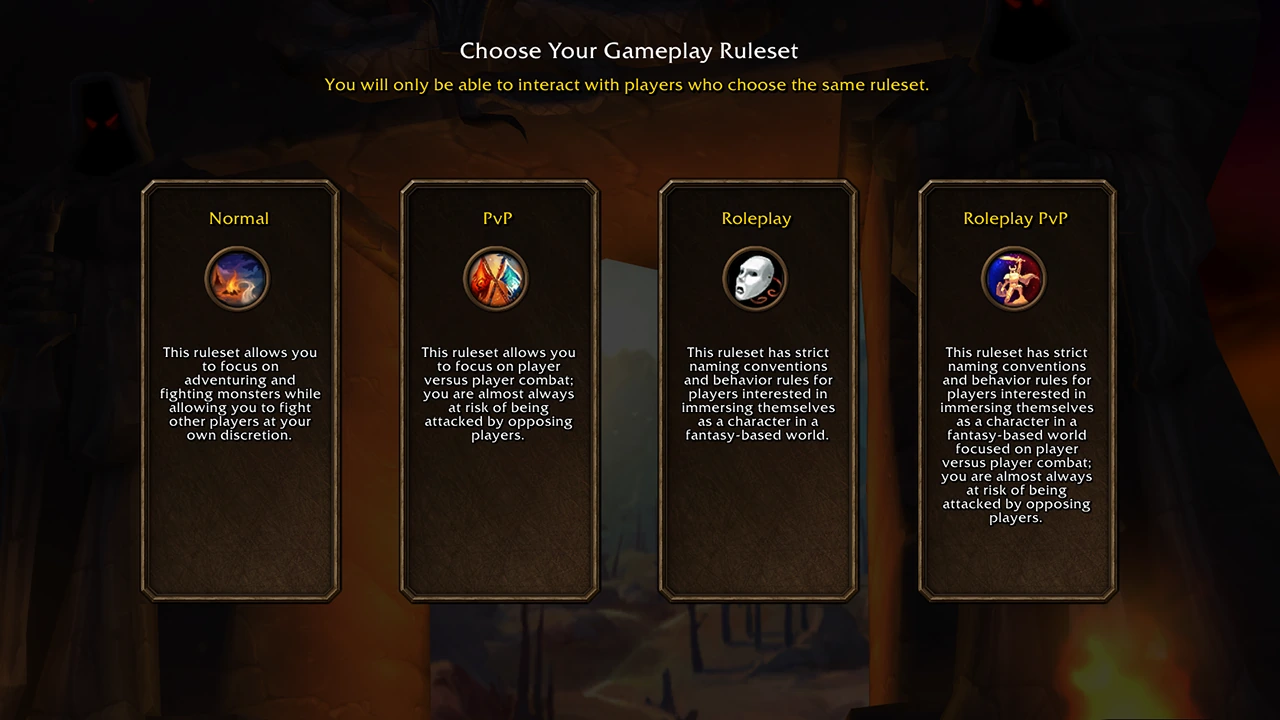
Click Install if the client is missing, then Play when it is ready. On first login you will see an Experience Preset choice before choosing a ruleset or making a character. The word Classic on this screen describes an interface preset inside World of Warcraft: Forever.
If the version menu shows only other editions, first make sure you opened World of Warcraft in the desktop app on the correct WoW account. Quit and reopen the app after correcting your login, then look for World of Warcraft: Forever again. Pick the live entry if a test version also appears.
If the desktop app fails to install, restart the computer and run the Windows or Mac installer again. If the app opens but the game stays at Initializing, check the download queue for another update, restart Battle.net and retry. Keep the exact error code if the same download fails again.
Choose how much help you want on the map
Choose Enhanced to start with quest markers, shaded objective areas and a combined bag. Choose Classic for the older layout, separate bags and fewer quest cues. You and a friend can use different presets and still play together.
For your first quest, talk to a character with an exclamation mark and accept the quest. Press L, select its title and read the objective. With Enhanced, press M and look for the highlighted search area. If no objective is visible, make sure the quest is tracked in the log. A question mark above a character marks a completed quest you can hand in.
Change a setting after the first login
Press Escape and open Options to change individual preferences. If a friend sees a shaded search area and you only see the map, check your quest display settings before traveling to another zone.
The preset screen appears only once. If you liked the Classic layout but want help finding quest objectives, keep your character and change the quest display in Options. Test the change with an active quest. If the tracker is full, untrack an older quest to make room on screen and keep its progress in your log.
Sources for this guide
- Blizzard · first login, game versions and experience presets
- World of Warcraft Forever Wiki · selecting the live client
- WoW Forever Outpost · launch and account-selection checklist
- Battle.net · official Windows and Mac desktop app
- Battle.net · sign in or create an account
- Battle.net · Games & Subscriptions account management
- Blizzard Support · game time on the wrong WoW account
- Blizzard Support · unable to install Battle.net
- Blizzard Support · game installation stuck while initializing
- Blizzard Support · playing WoW in a different region